Admins can add waitlisted players after an event or program has started. This helps you fill last-minute openings, replace no-shows, or add extra players without duplicating or recreating the activity.
Note: You can only move a player off the waitlist in the mobile app, after the event or program has started.
Common Use Cases
This feature is especially helpful when:
- A registered player cancels last minute
- A player doesn’t show up
- You have additional capacity after the event or program begins
- You want to manually approve a specific waitlisted player
How to add a waitlisted player
First, make sure there’s an open spot in the event or program. In the mobile app, you can do this by increasing the number of spots in a registration option or by removing an inactive participant.
For events
Step 1: Make an open spot
- Option 1: Add additional spots within registration
- Open the event page on the app
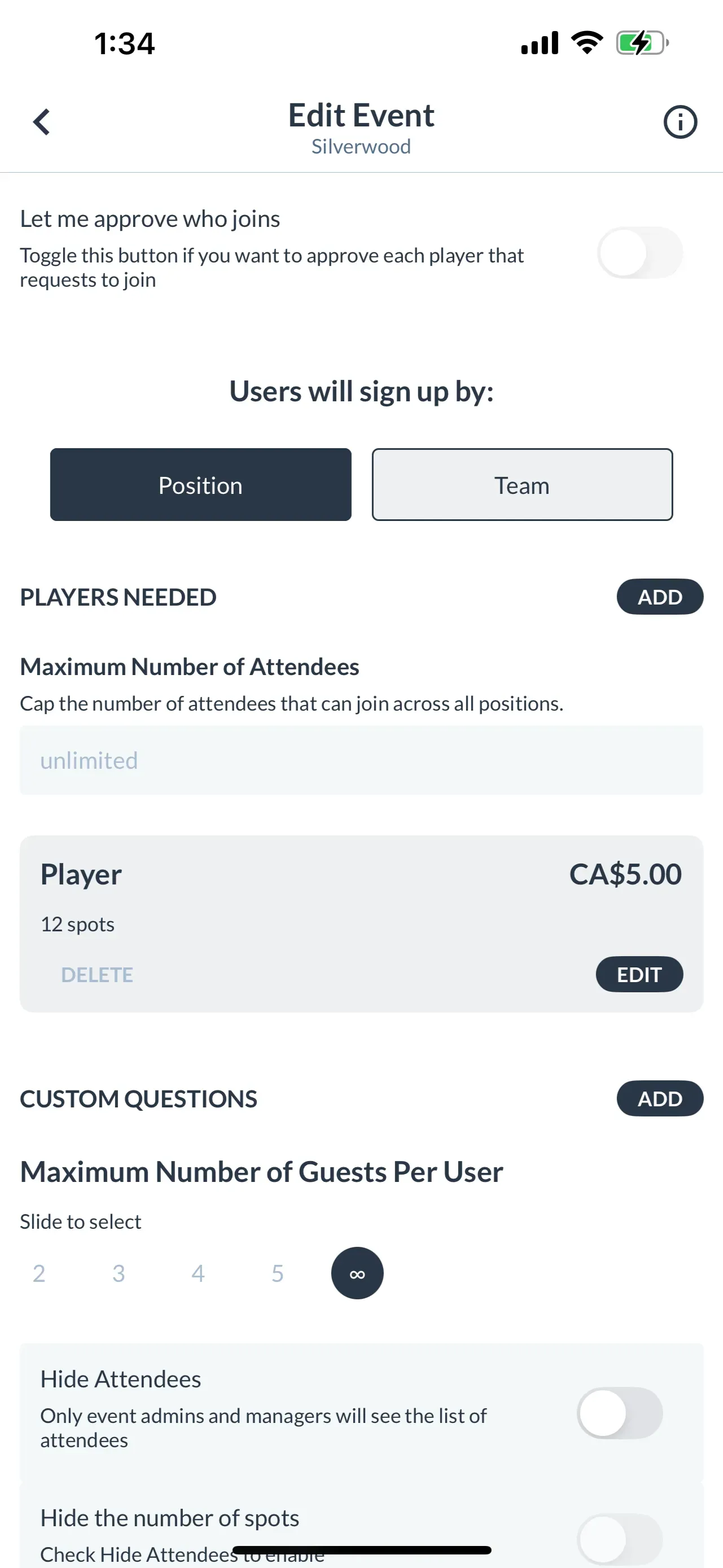
- Tap Edit Event and locate Registration
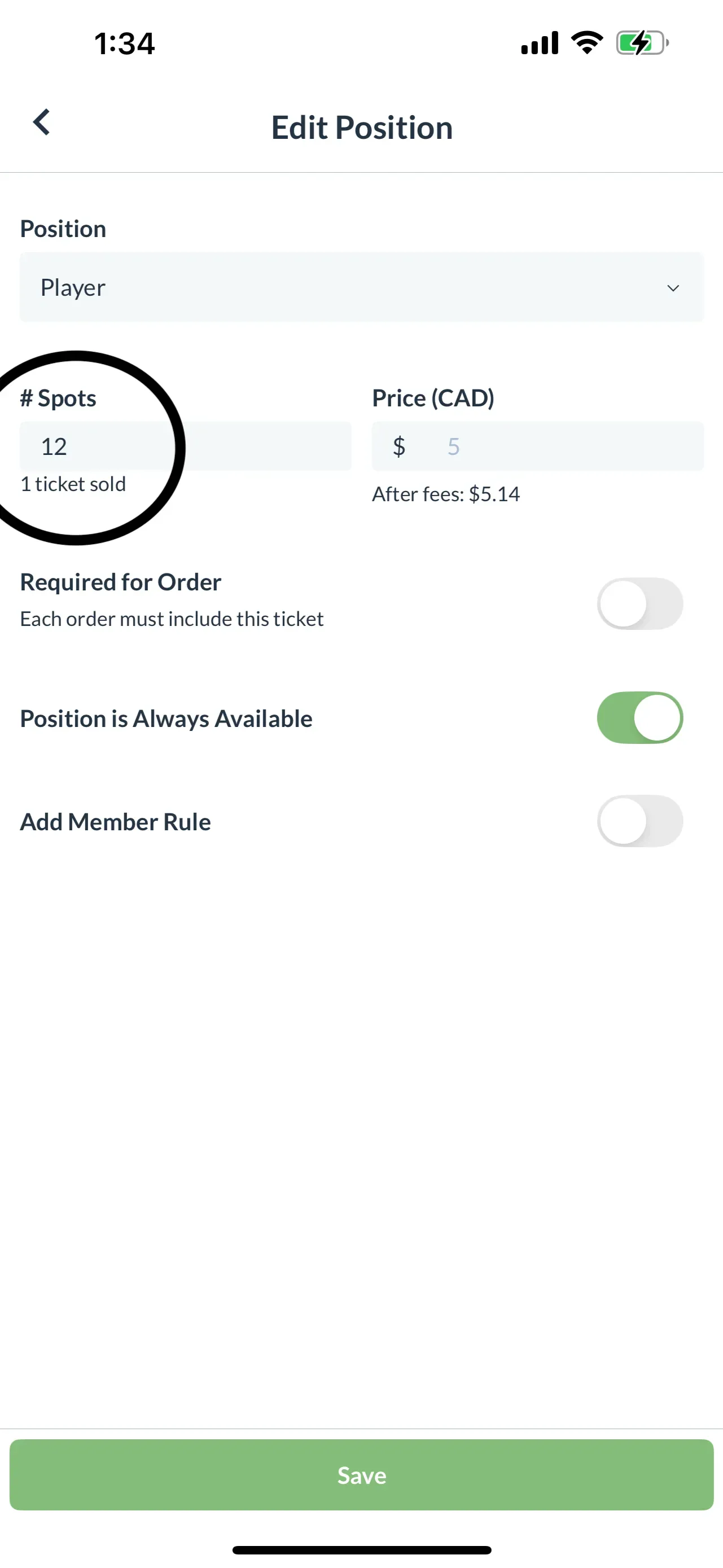
- Choose specific registration and tap Edit
- Increase # Spots to desired amount
- Tap Save
- Option 2: Remove inactive players
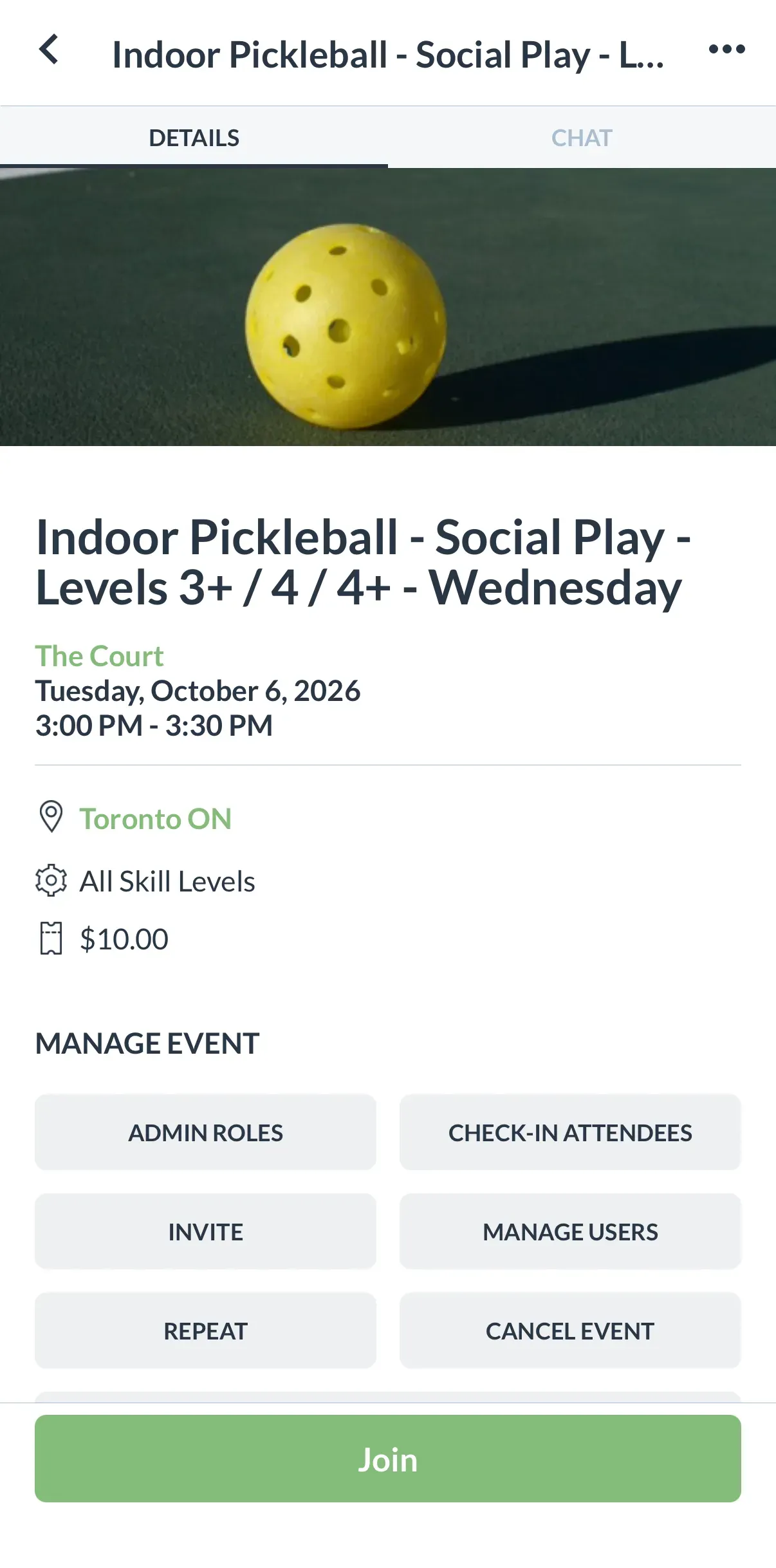
- Open the event page on the app
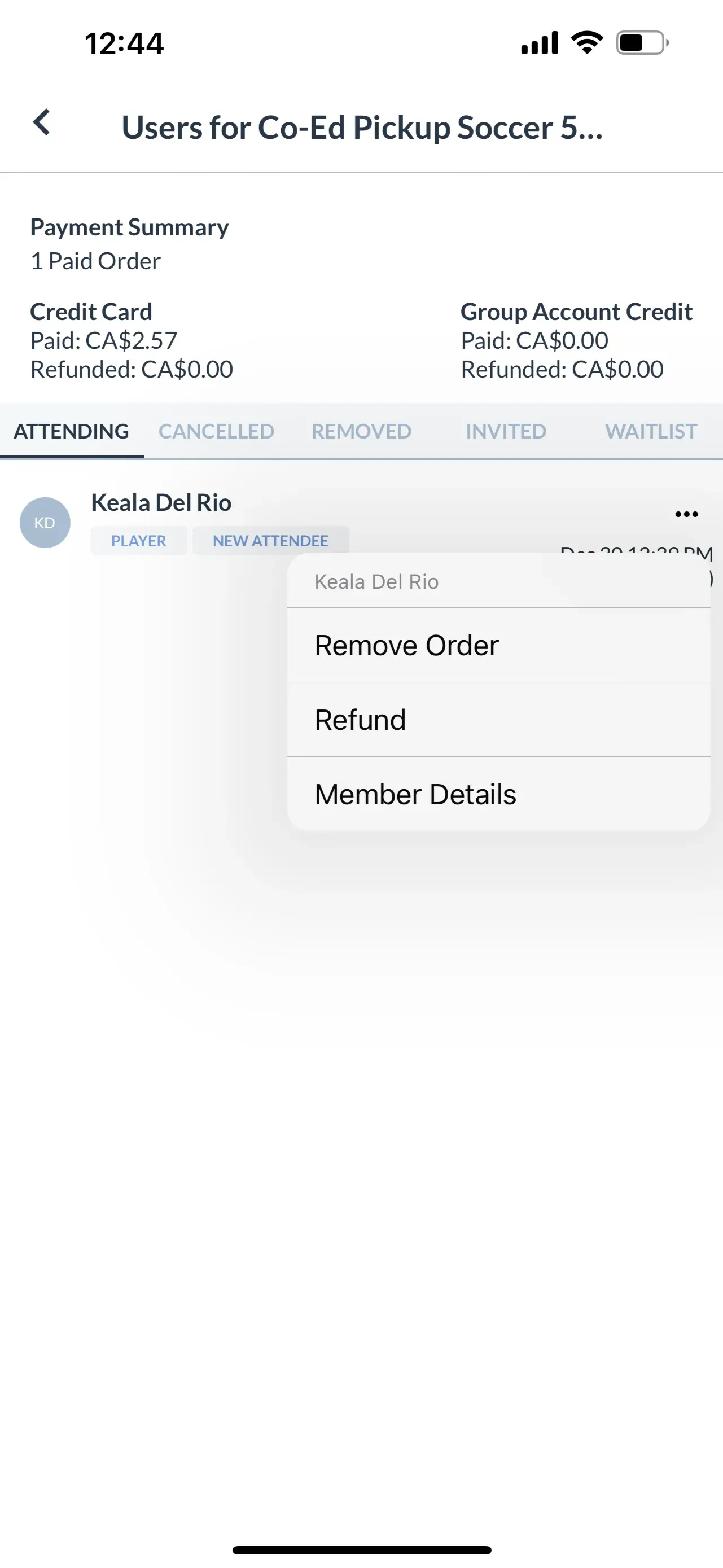
- Tap Manage Users
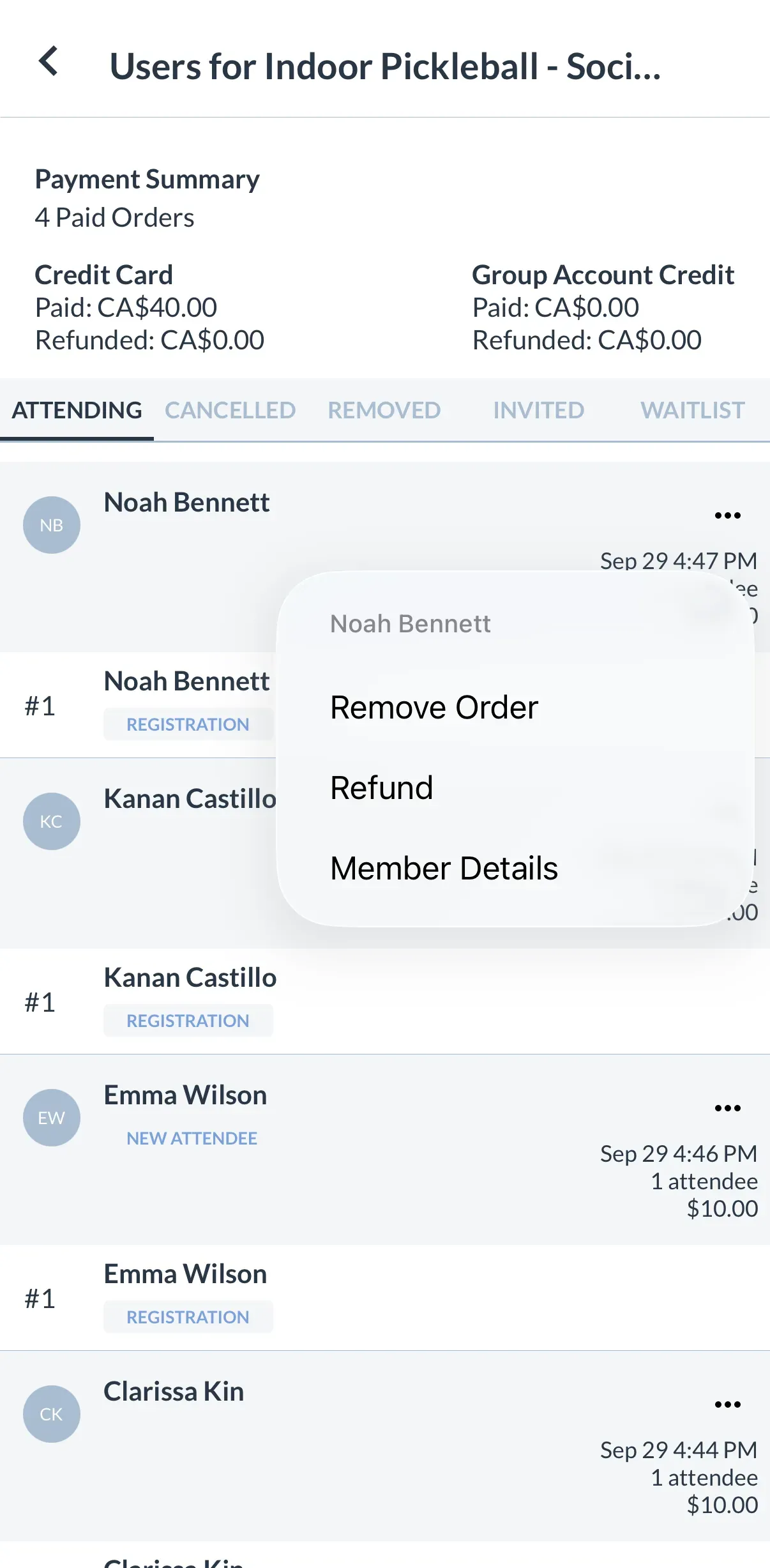
- Locate the inactive player and tap on the three dots (...) next to the player’s name
- Select Remove Order and complete the refund flow
- Tap Remove Attendee to finalize
Step 2: Add the waitlisted player
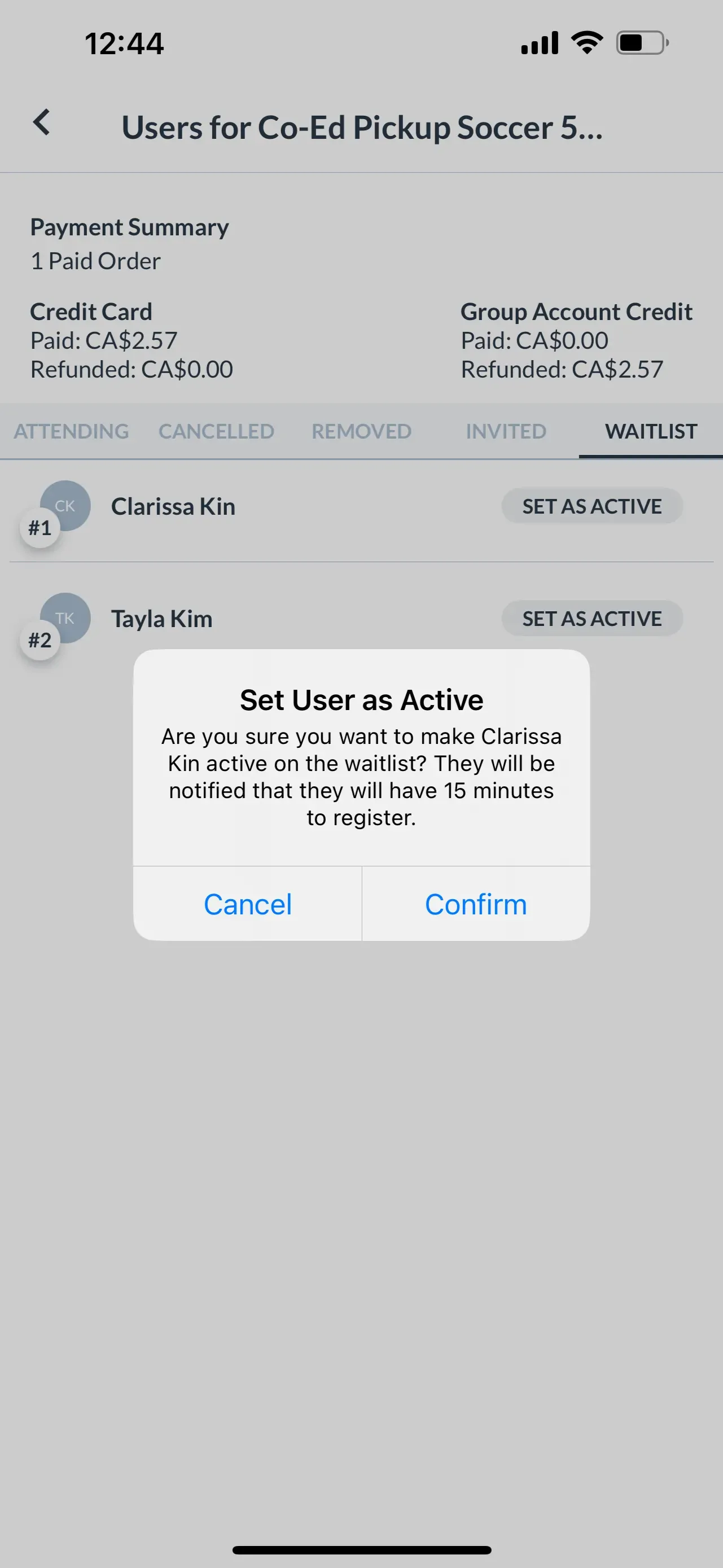
- From the event page, select Manage Users > Waitlist
- Tap Set as Active beside the player’s name
- The player will be notified and will have 15 minutes to complete registration.
For programs
Programs are multi-session, capacity and removals will apply to the entire program, not individual sessions.
Step 1: Make an open spot
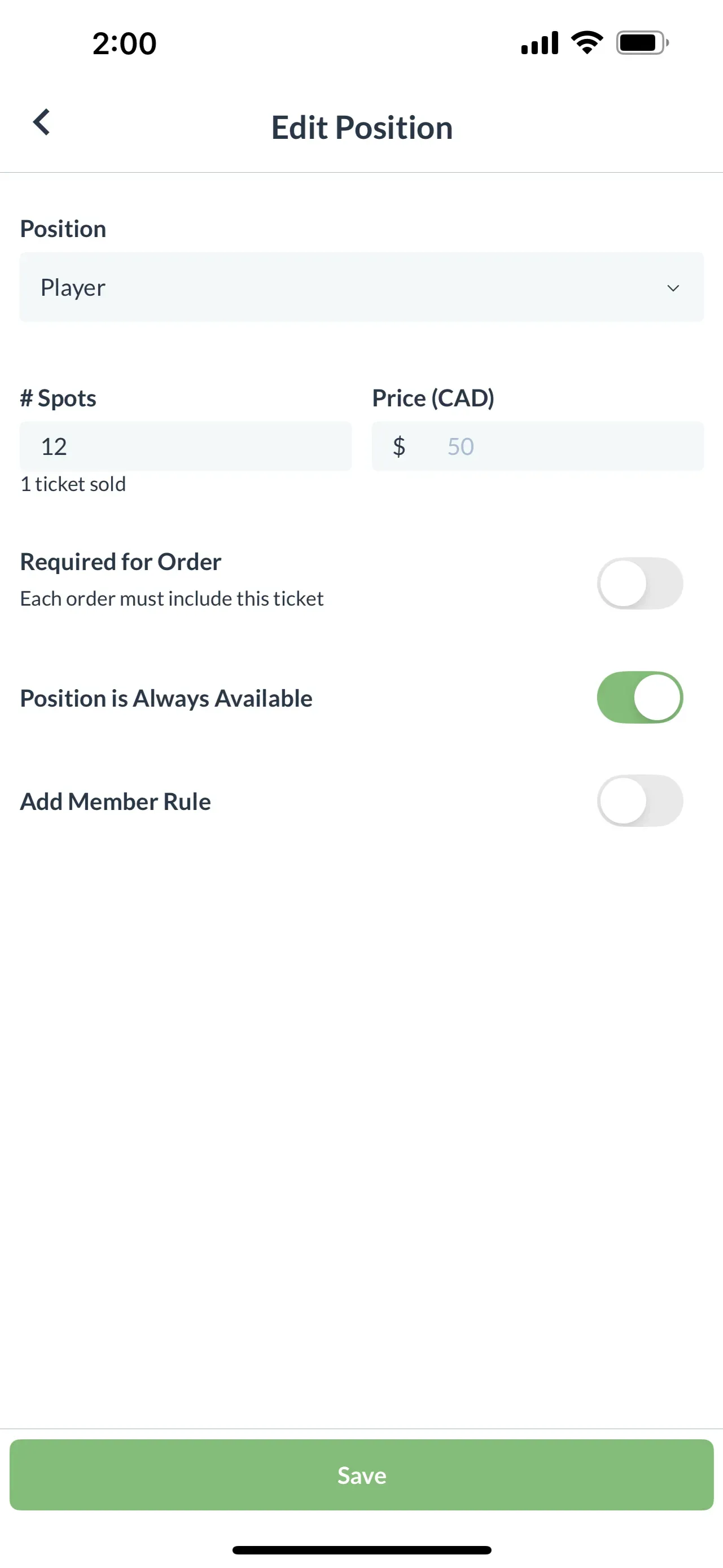
- Option 1: Add additional spots within registration
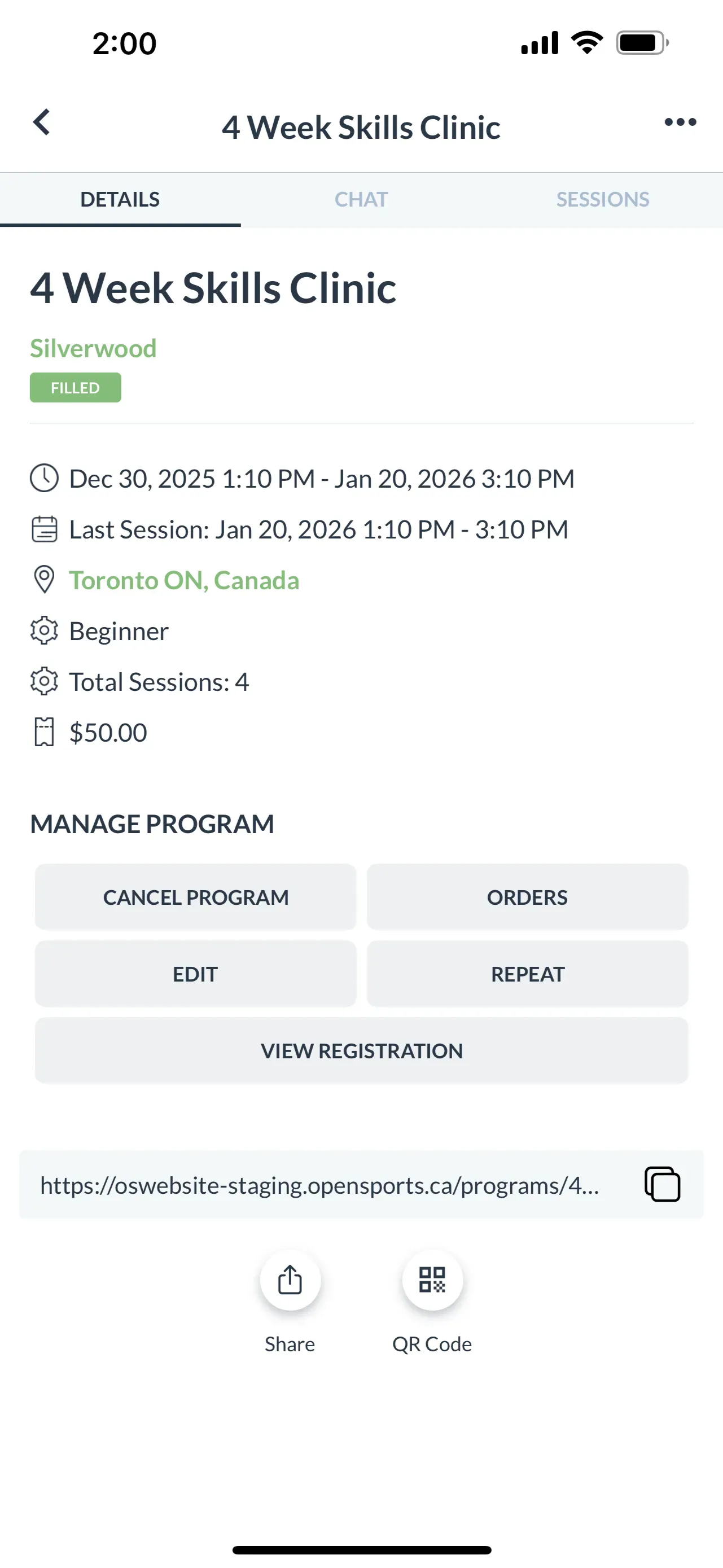
- Open the program page on the app
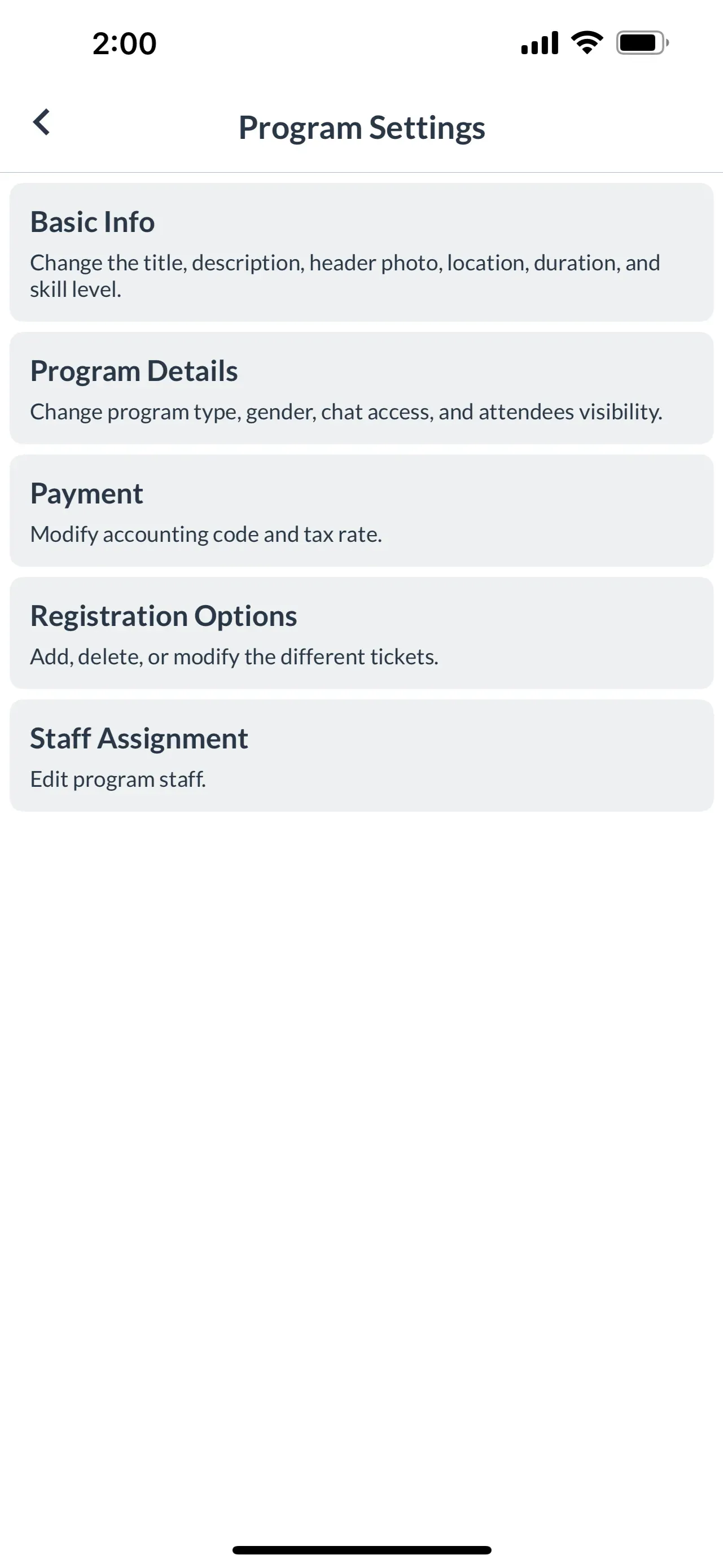
- Tap Manage Program > Edit > Registration Options
- Choose specific registration and tap Edit
- Increase Spots to desired amount
- Tap Save
- Option 2: Remove inactive player
- Open the program page on the app
- Tap Manage Program > Orders
- Locate the inactive player and tap on the three dots (...) next to the player’s name
- Select Remove Order and complete the refund flow
- Tap Remove Attendee to finalize
Note: Removing a participant will remove them from all sessions in the program, not just a single session.
Step 2: Add the waitlisted player
- From the program page, select Orders > Waitlist
- Tap Set as Active beside the player’s name
- The player will be notified and will have 15 minutes to complete registration.
Important Notes
- This action is manual and only admins with the roles listed below can activate waitlisted players.
- Group Admin
- Event Admin
- Event Manager
- The event/program must still have available capacity
- Activating a waitlisted player does not automatically register them, they must still complete registration
- This does not affect players who are already registered or checked in.
- Once the player has been activated they will have 15 minutes to register
Questions? Send them our way: support@opensports.net