Set up registration forms for event attendees to respond to when registering for your events on OpenSports. You can re-use existing registration forms and export attendees responses through the OpenSports dashboard. This guide will show you how to add and edit custom questions on the OpenSports website and app.
How to add a registration form
Registration forms can be created during the event setup workflow.
- To add new custom questions when creating your event, click on New Form.
- Enter the Name of Questions — this name refers to the entire set of registration forms.
- Enter the question in the Question field.
- To view additional question options, click Show Options.
- Add a question Description
- Check the Required box to make the question mandatory to answer during registration
- Input type:
- Text: free single-line text entry for responses
- Multiline: free multiple-line text entry for responses
- Dropdown: enter custom responses to be shown as a dropdown menu — only one option can be selected
- Select the registration type that the registration form applies to. This allows you to create different registration forms for different groups of attendees (e.g., different questions for beginner vs. advanced attendees, players vs. goalies).
- Only one question set can be applied to a single registration type.
- Once you're happy with your registration form, click on Add New Questions.
- To re-use existing questions when creating your event, click on Reuse Existing Questions, then select the question set from the dropdown list and select which registration type the question set applies to.
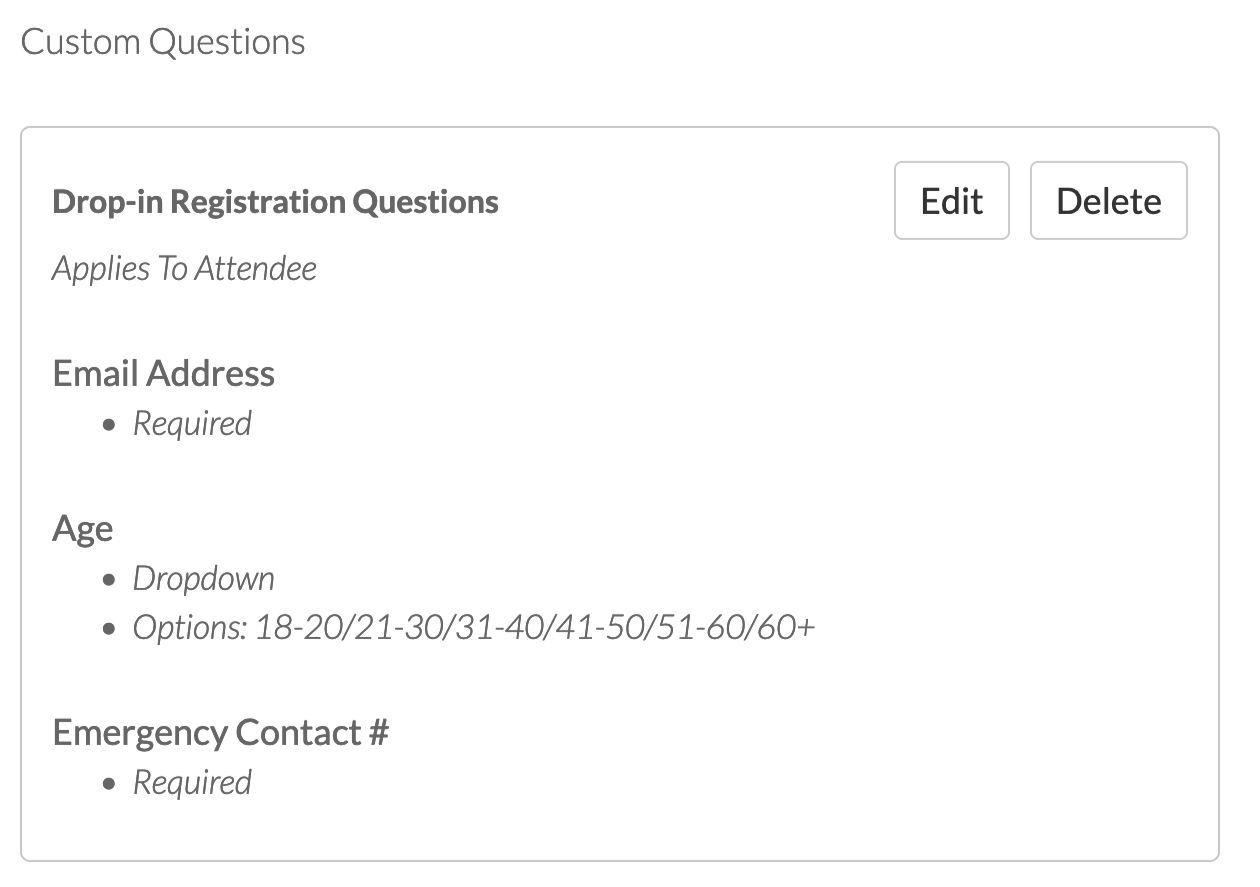
- You will see a summary of your custom question(s) on the event setup page.
How to edit registration forms
- Navigate to the event page and click on Edit Event.
- Scroll to the Registration Forms section and click on Edit.
- Choose whether to update the question set for the specific event or for all events (i.e., any changes made to the question will apply to all events where the question set is used).
- Make your edits to the custom question(s).
- Click Add New Version and preview the questions on your event page.
Your custom registration questions are all set up! Learn about exporting attendee responses here.
Questions? Send them our way: support@opensports.net