If you run camps, you’ve probably dealt with this: the first day arrives and you’re still sorting who belongs where. For example, kids registered for a full-day option need to appear in both the morning and afternoon sessions, while half-day participants only belong in one. A small mistake can turn into a messy check-in and confused parents. Session-based Registration fixes this by letting you choose which registration options apply to each session. Once set up, participants are automatically placed into the right sessions, so attendance and check-in stay accurate.
This article will cover:
- Why we created Session-based Registration
- How to create a program with Session-based Registration
- How to navigate the program dashboard
- The parent/player experience after registration
- FAQ
Why we created Session-based Registration
Before Session-based Registration, admins generally handled multiple options (like morning, afternoon, or full-day) in one of two ways:
1. Create separate programs for each option. This kept attendance clearer, but it duplicated setup and made programs harder to manage (multiple programs, multiple settings, multiple exports).
2. Keep everything in one program. This simplified the setup, but it wasn’t clear who should attend which sessions. Admins often had to manually track attendance, and participant calendars could show sessions they weren’t actually registered for.
Session-based Registration solves this by letting you assign registration options to specific sessions inside a single program. That way, participants only appear in the sessions they should attend, and calendars, attendance, and check-in reflect what was purchased.
Use case example: A camp with different registration options
For a 5-day camp with multiple time options, create registration options such as:
- Morning (9am–1pm)
- Afternoon (1pm–4pm)
- Full day (9am–4pm)
Next, create the sessions for the camp. In this example, you would create:
- 5 morning sessions (one per day)
- 5 afternoon sessions (one per day)
When creating those sessions, select Specify Registration Options and choose which registration options apply:
- Apply to Morning (9am–1pm) and Full day (9am–4pm) to the morning sessions
- Apply to Afternoon (1pm–4pm) and Full day (9am–4pm) to the afternoon sessions
As a result, participants are automatically placed into the correct sessions based on the registration option they selected.
How to set up Session-based Registration within programs
Create program
- Locate Group Dashboard > Programs > Create Program
- Enter all required information:
- Sport
- Title
- Location
- Program Duration
Under Program Details, we recommend enabling Hide Attendees and Disable Chat for youth programs. This ensures the attendee list is only visible to admins and event managers and prevents participant messaging.
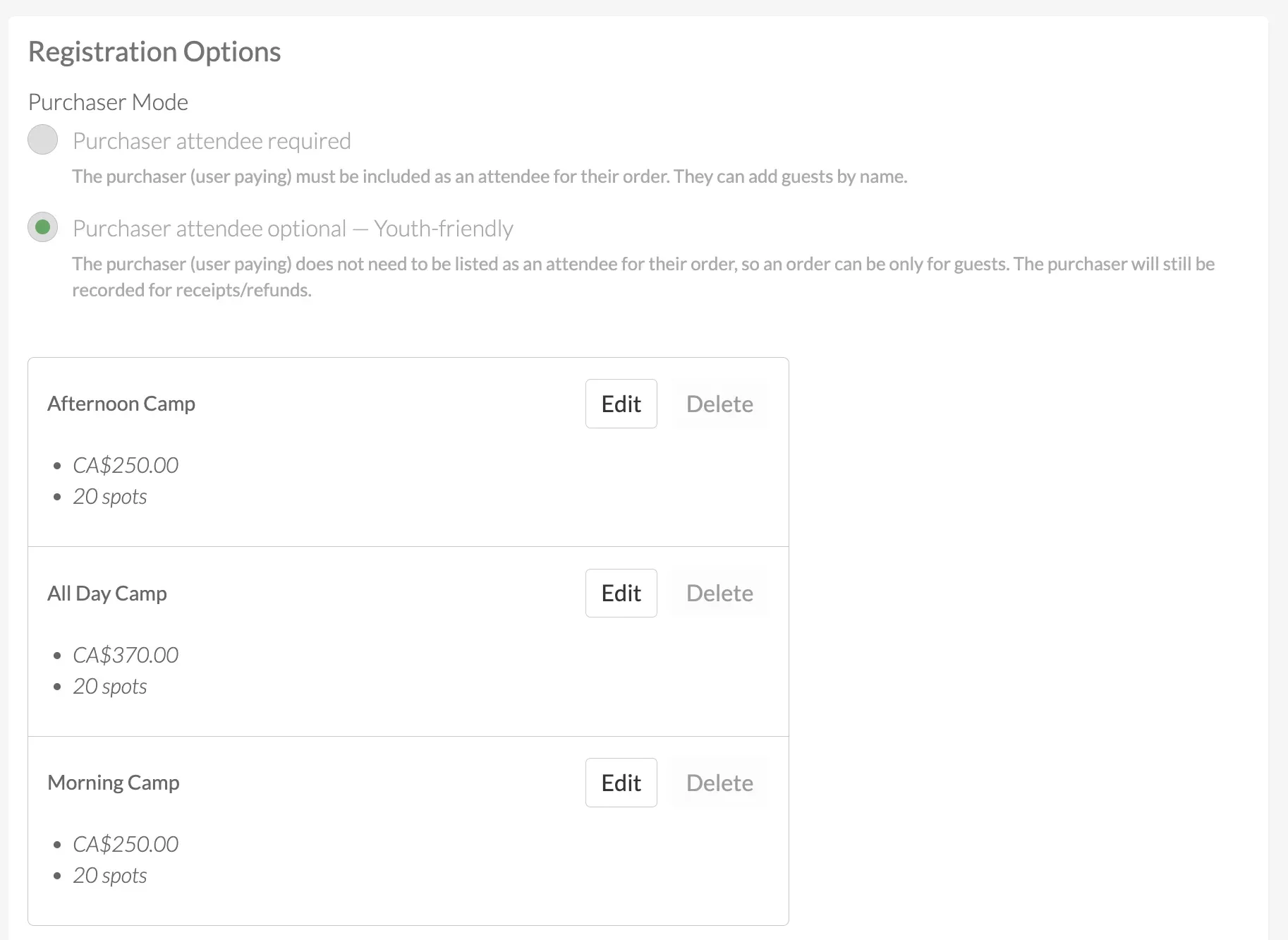
Under Registration Options, select Purchaser Mode Optional – Youth-friendly for youth programs, then create the corresponding registration options.
(optional) Use Custom Questions to collect any program-specific information you’d like parents to provide during registration.
Create sessions
Under Sessions, select Recurring Sessions
Set the session details including:
- Title
- Location
- Start Date
- Days of the Week
- Time Slots
Example sessions to create:
- Monday to Friday from 9am - 1pm
- Monday to Friday from 1pm - 4pm
- Under Registration Options select Specify Registration Options, and select the corresponding options. This ensures participants who select a registration option will be added to the correct sessions. Note that full day registrations should be added to both time blocks so participants appear in all applicable sessions.
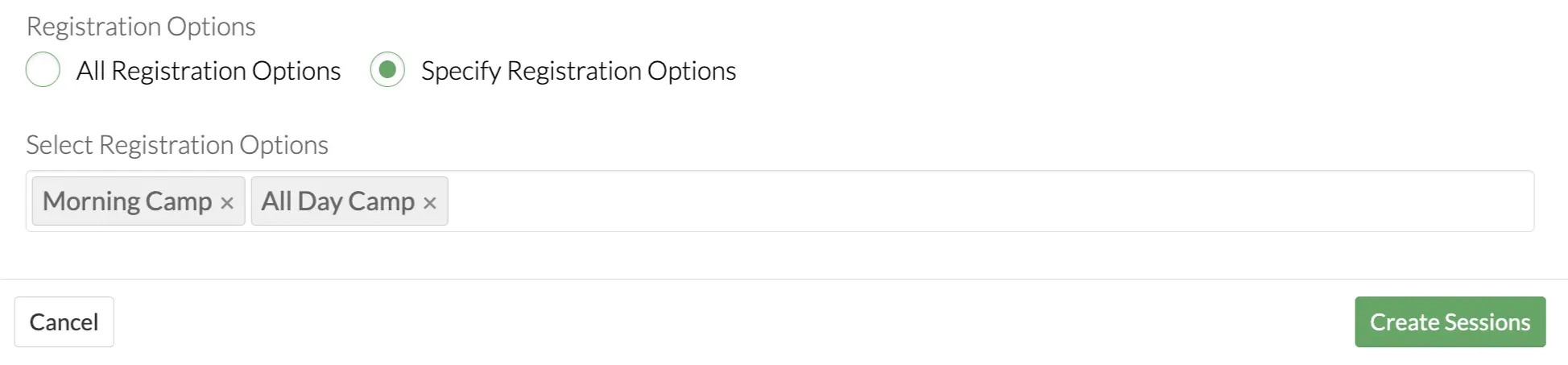
Complete any remaining fields and click Create Sessions. Repeat this process for other registration options like the afternoon sessions.
Once sessions are created you will be able to preview them along with their corresponding registration options.
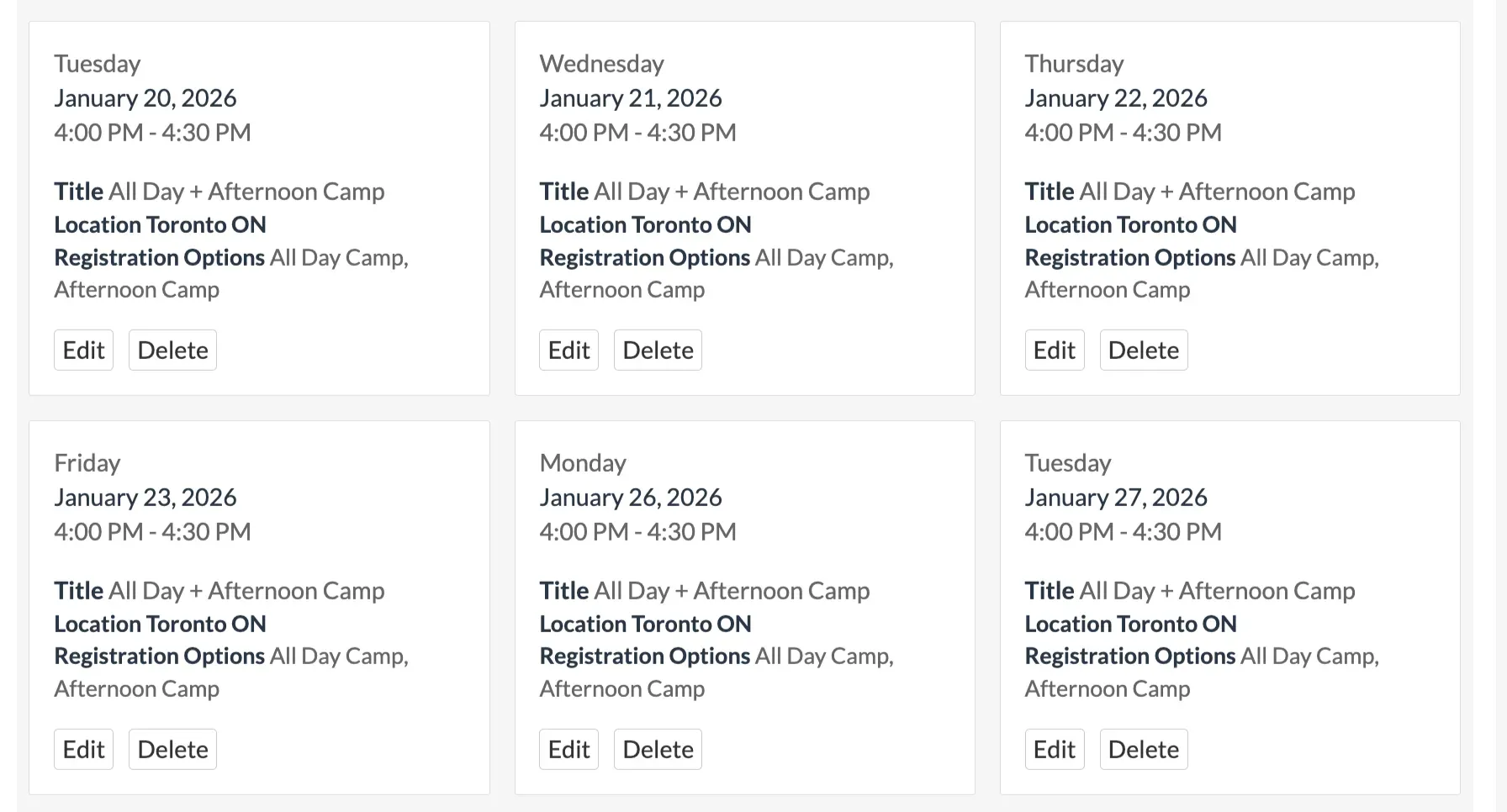
- Review the session before clicking Save.
Program Dashboard
Sessions
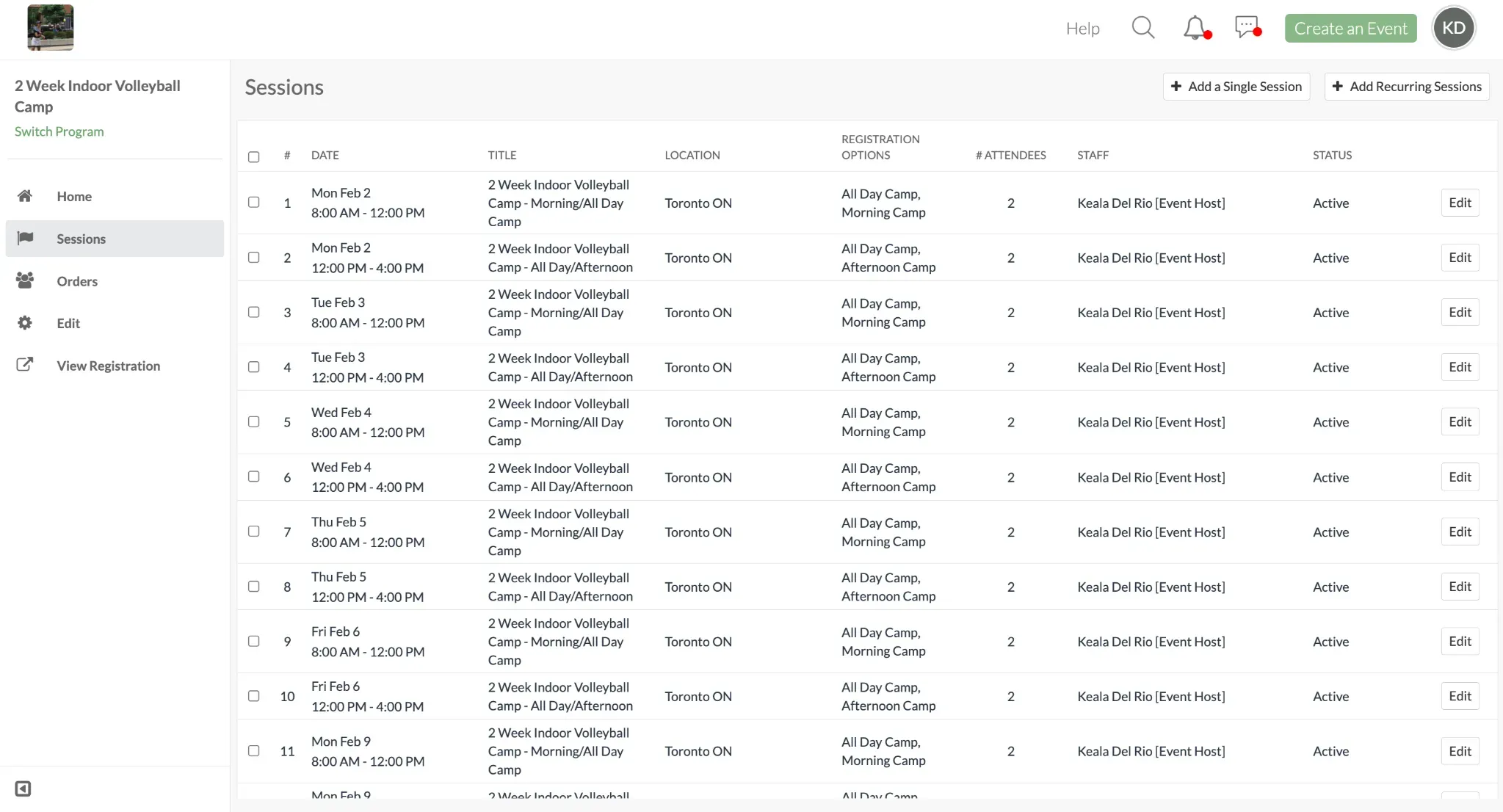
- View all the recurring sessions that were created
- View the number of registered attendees per session
- Edit session time, location, and assigned staff
- Add additional single or recurring sessions
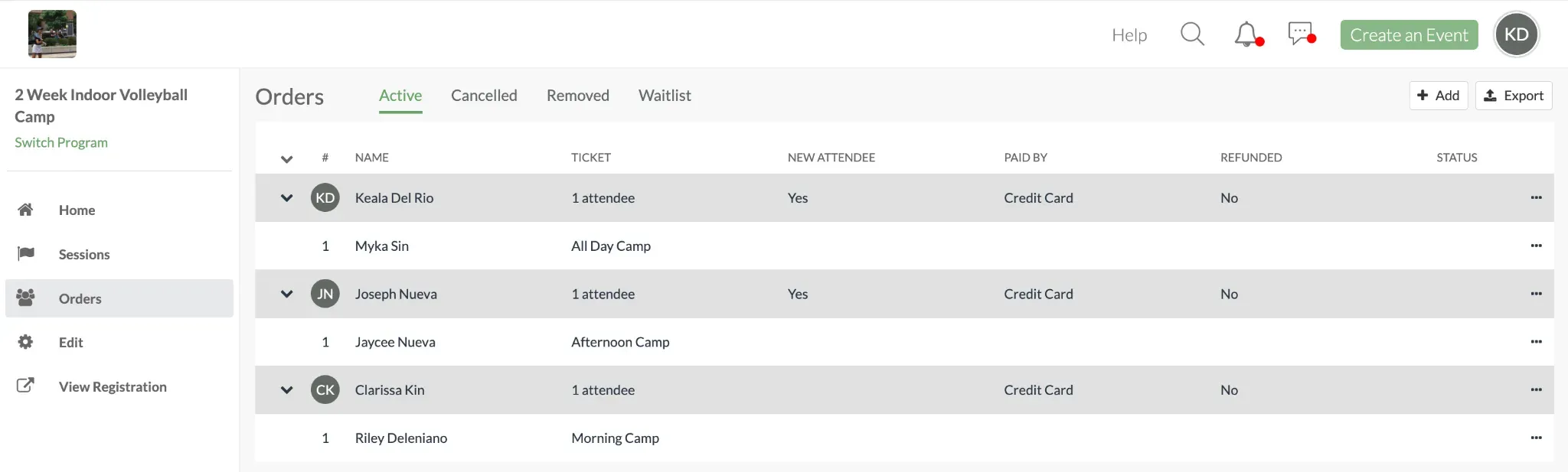
Orders
- View the parent or guardian who completed the purchase.
- See the child registered under each order.
- Identify which registration option was purchased,
- Using the three dots on the right, view parent Member Details, Payment, or Remove Order.
Note: Member Details will display the parent’s information. To collect details about the child, use Custom Questions or add additional fields to your Member Form. Custom questions set up during registration can be viewed by clicking Export.
What the parent/player sees
Half Day Registration
- Includes one time block (morning or afternoon)
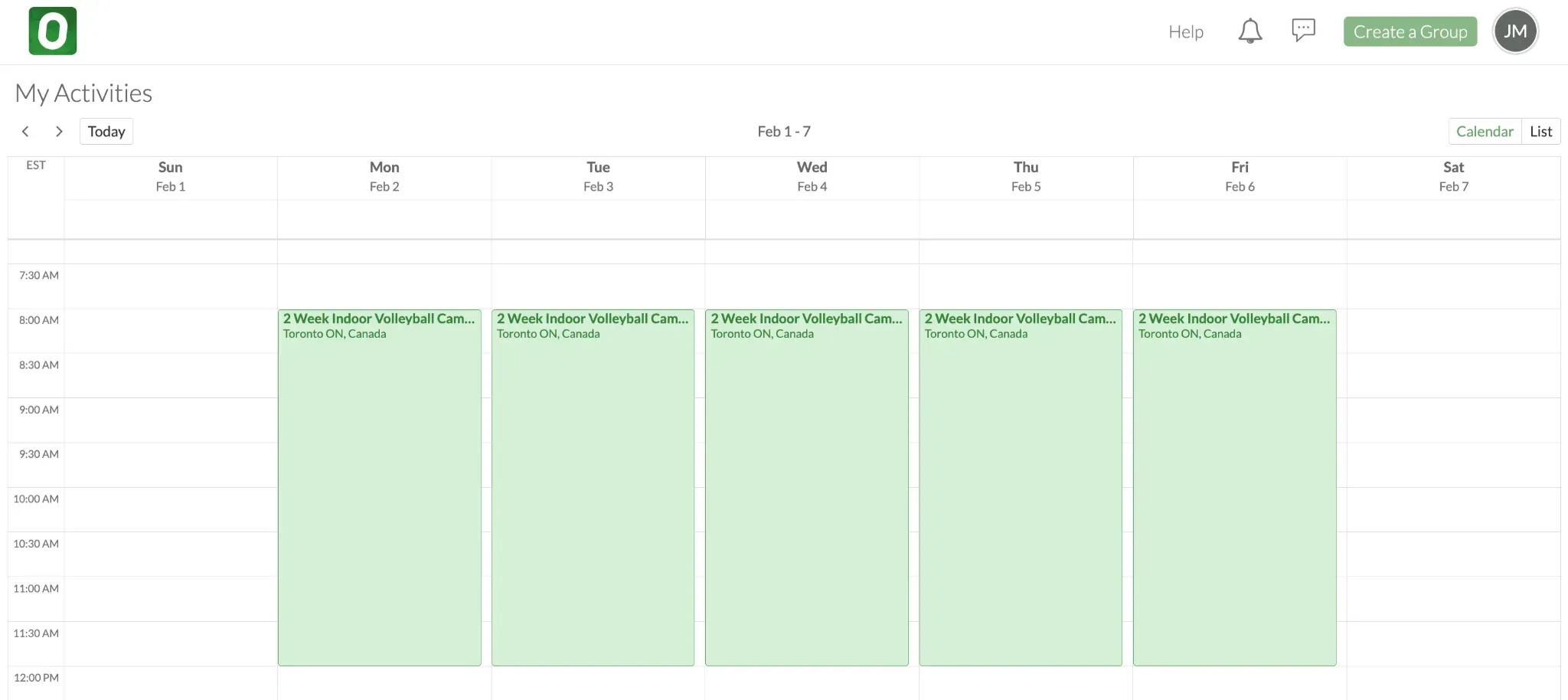
- The child is registered for a single session per day
- Only the registered sessions appear in the player’s calendar
Full Day Registration
- Covers both morning and afternoon, two sessions appear on the player calendar
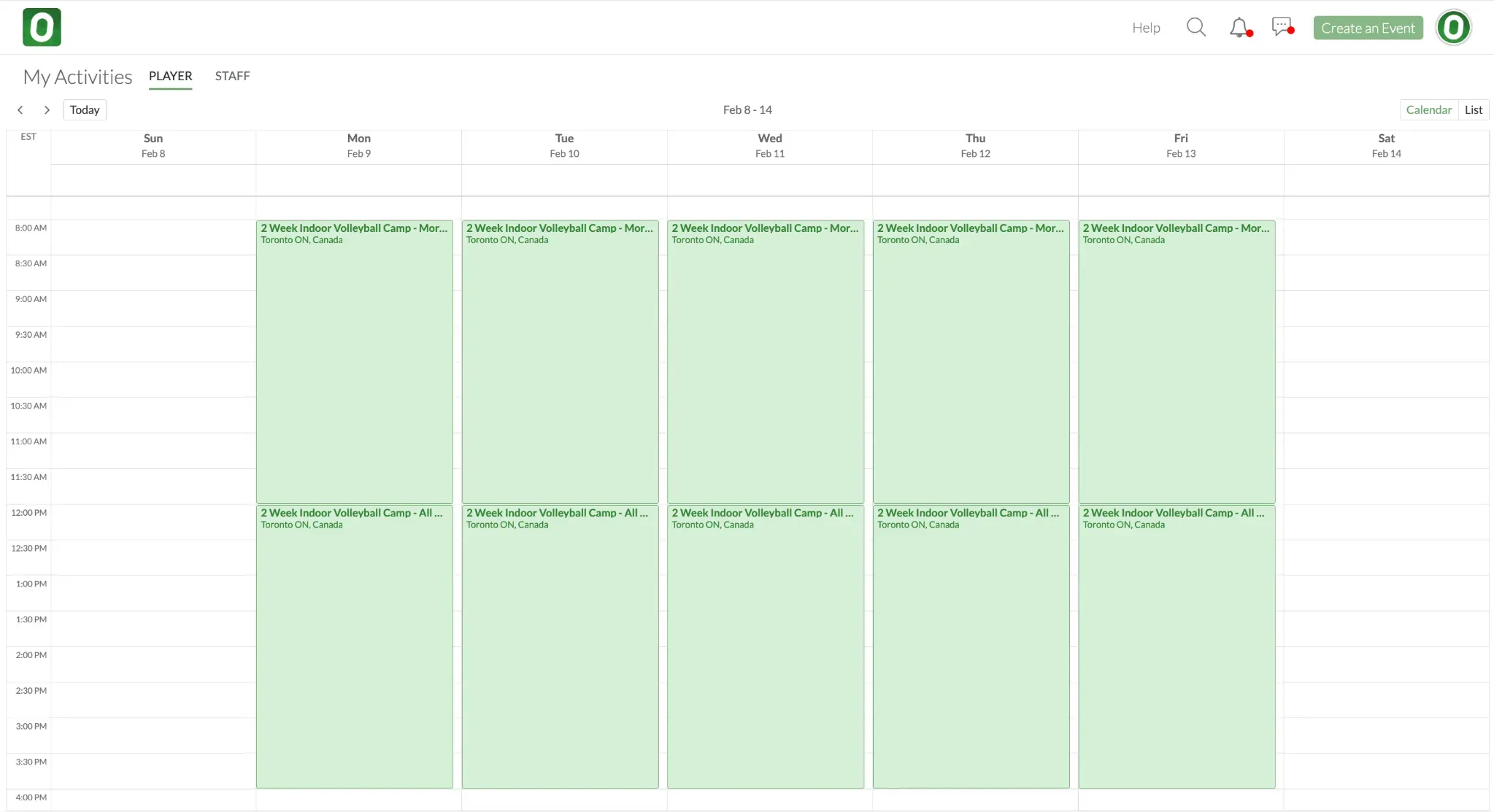
- Parents register the child once, not twice
- The child is automatically added to both sessions each day
Note: On the app after registration, the Sessions tab shows all sessions offered by the program. Your Player Calendar only displays the sessions you are registered for.
FAQ
1. What happens if a session doesn’t have a registration option set?
Sessions that don’t specify a registration option are valid for all registration types. Thus, anyone who registers will be added to the session.
2. What happens if a session is missing a registration option?
If a session doesn’t have a required registration option, participants will not be automatically assigned to the session.
3. What happens if I change a registration option title after sessions are created?
If you rename a registration option, it will remain connected to the corresponding sessions.
4. Where can admins see who is registered for each session?
Admins can view who is registered for each session directly from the Program Dashboard under Sessions. Click into any session to see the list of attendees, along with the registration option each player purchased in Orders.
5. Can I limit session capacity differently for half-day and full-day registrations?
You can control session capacity directly within each registration option by setting a maximum number of spots. Please note a full day registration that is linked to multiple sessions, will reserve one spot in each linked session (e.g. morning and afternoon). Be sure to set session capacities with this overlap in mind.
6. Can I use Session-Based Registrations for prorated or partial-week programs?
Yes, linked registration works well for partial-week programs (e.g. Week 2–4), time-based options (morning, afternoon, full day) and multi-week camps and clinics.
7. Can I add or edit sessions after sessions are posted?
Admins can add one-off sessions or additional recurring sessions from the Program Dashboard at any time. When creating new sessions, you can specify which registration options apply. Any updates to session details can be saved using Save & Notify to automatically notify affected attendees.
Questions? Send them our way: support@opensports.net