Now available for leagues and tournaments, you no longer need to manually message players when a spot opens up. Instead, you can send direct offers to players on the waitlist, helping you manage availability and fill spots more efficiently.
Quick Summary
View and manage all waitlisted players in one place Send direct offers instead of manually messaging players Set expiry times to control how long offers remain active
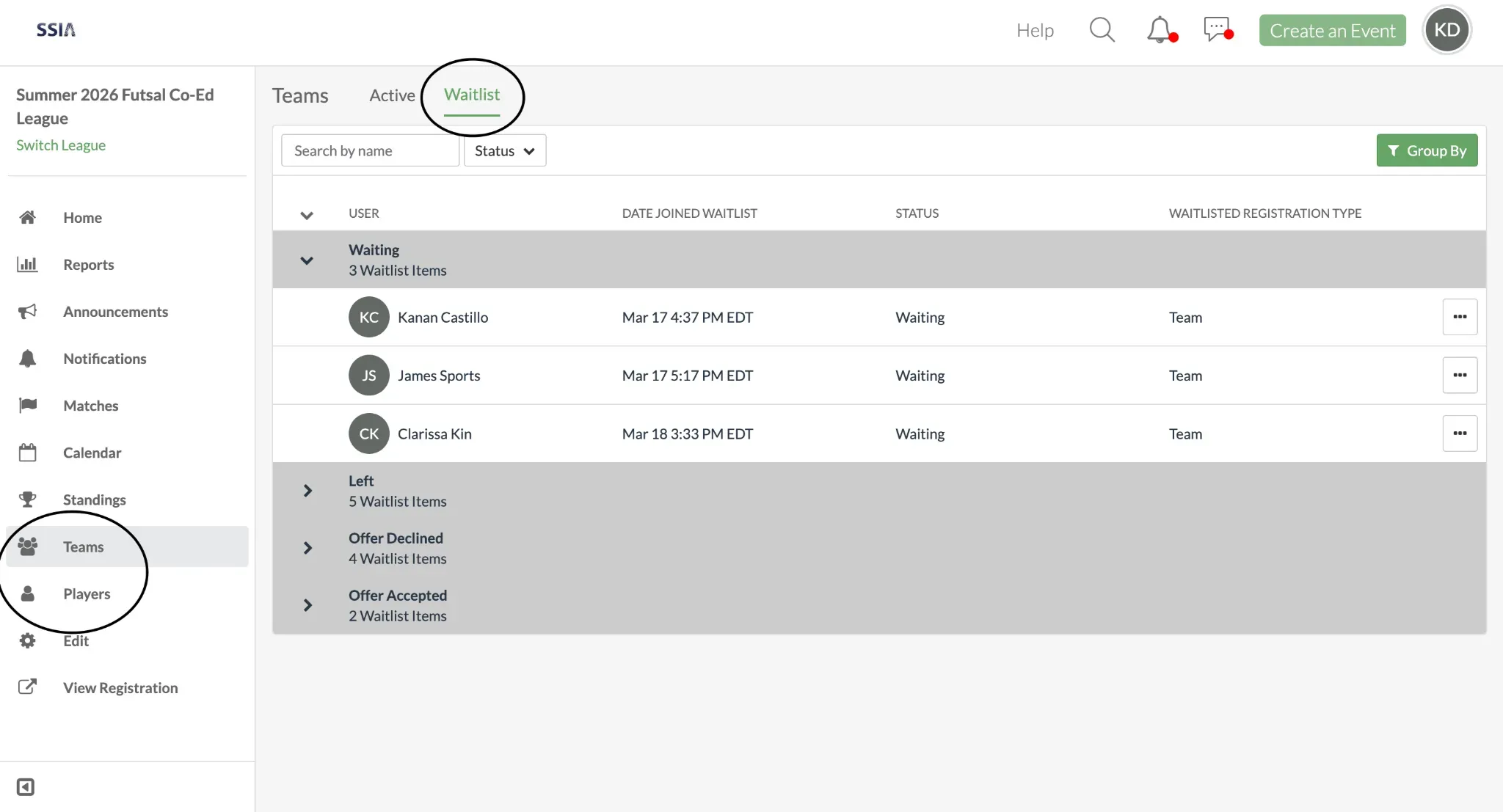
Viewing the waitlist (Web only)
To access the waitlist for your league or tournament:
Go to your League/Tournament Dashboard
Depending on your registration type:
- Team registration: Click Teams
- Individual registration: Click Players
- Select the Waitlist tab at the top
From here, you’ll see different waitlist statuses:
- Waiting
- Offered
- Offer Accepted
- Offer Declined
- Left
Waitlisted entries are shown in chronological order based on when they joined (see Date Joined Waitlist).
Offering a spot to a waitlisted player (Web only)
Before offering a spot, ensure a spot is available or increase the total number of spots in the registration.
To offer a spot:
- Go to Teams/Players > Waitlist > Waiting
- Locate the player or team
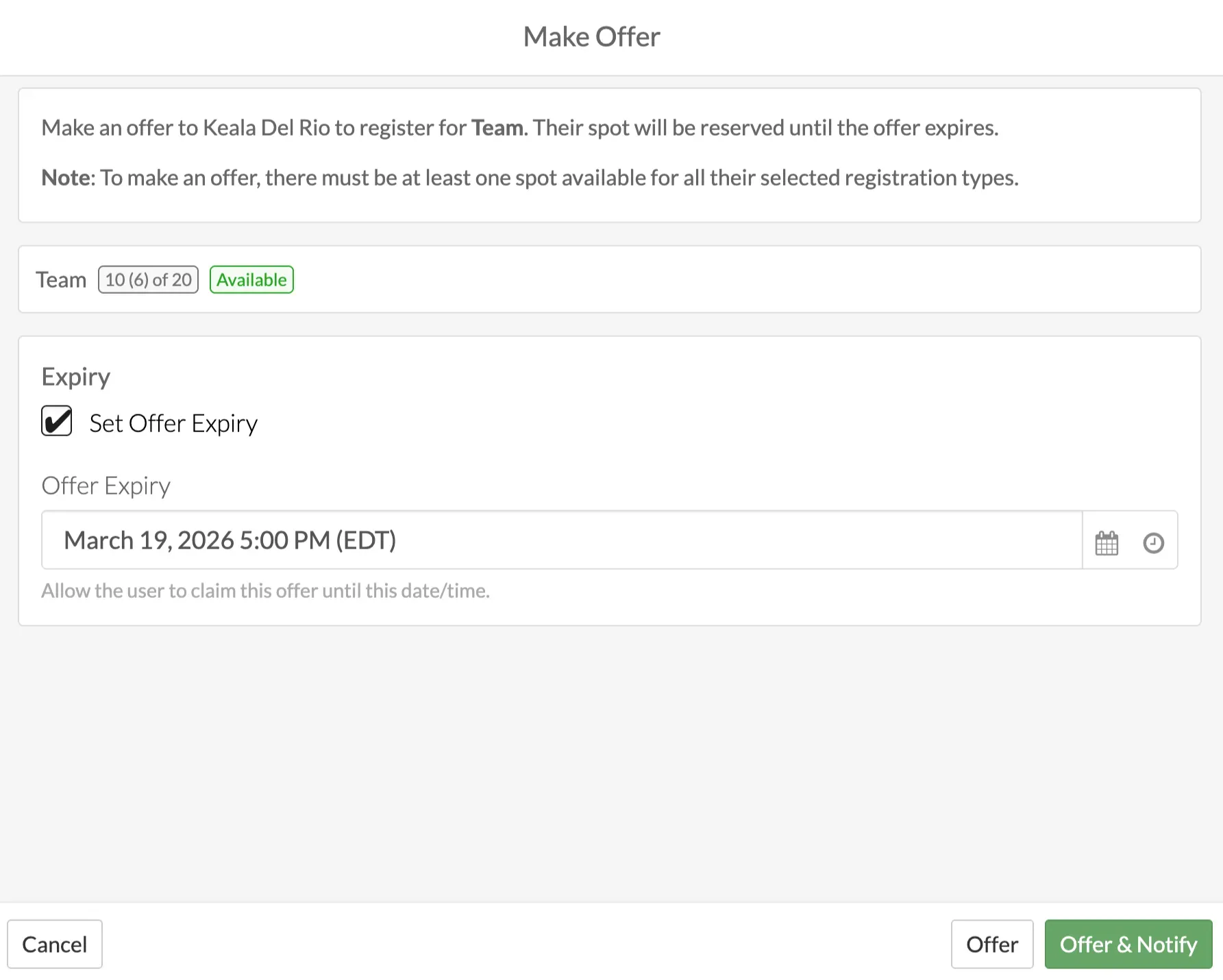
- Click the three dots (...) on the right Select Make Offer
- (Optional) Set an **expiry date and time **
- Click Offer or Offer & Notify
Once the offer is sent, the player will move to the Offered tab.
Important Notes
- Offers are not automatic, and admins must manually send them
- Players cannot claim spots unless they receive an offer from the admin
- If multiple spots are available, you can send individual offers to multiple teams or players
- Offers can include an expiry time to prevent spots from being held indefinitely
Rescinding an offer
To cancel an offer:
- Go to League/Tournament Dashboard > Teams/Players > Waitlist
- Locate the Offered section
- Find the team/player
- Click the three dots (...) to select Rescind Offer
- (Optional) Enter a message to notify the player why the offer was rescinded
Note: If an offer is rescinded, the player will be automatically returned to the waitlist in their original position.
Player POV
- Join the waitlist if a league or tournament is full
- Receive an offer when a spot becomes available
- Accept the offer before it expires to secure your spot
How players leave the waitlist
Players can leave the waitlist at any time:
- Go to the registration page
- Click Leave Waitlist


Using waitlist offers helps you fill open spots faster while keeping things organized and fair. Instead of chasing players or managing messages, you can confidently manage availability, prioritize players, and keep your leagues running smoothly.
Player FAQ
1. What if I accidentally join the waitlist twice?
Duplicate entries can occur when you join the waitlist more than once. In this case, you’ll see multiple “On Waitlist” entries, simply tap Leave Waitlist on one of them to remove the duplicate.
2. How long do I have to accept the waitlist offer?
This depends on whether the organizer has set an expiry. If they have, the expiry time will be shown on the offer and in your notification.
3. What happens if I don’t respond to an offer?
If an expiry date was set, the offer will expire and may be offered to another player. If no expiry is set, the spot may remain reserved for you until the organizer takes action.
4. How do I know my place on the waitlist?
At this time, your exact position on the waitlist isn’t shown. Waitlists are managed in chronological order based on when you joined, and if a spot becomes available, the organizer will offer it to players accordingly.
5. If I leave the waitlist, can I rejoin later? Yes, but you’ll be added to the bottom of the waitlist based on the new join time.
Admin FAQ
1. What happens when I increase the number of spots in my league or tournament?
New spots will open up, but they are not automatically assigned to waitlisted players. You’ll need to manually offer spots to players on the waitlist.
2. Are waitlist offers automatic?
No, waitlist offers are currently manual. Admins must select teams/players and send offers when spots become available.
3. What if a player joins the waitlist twice?
If duplicate entries appear, you can view them by going to Teams/Players > Waitlist on your league or tournament dashboard. From there, you’ll be able to spot any duplicates and remove one of the entries.
4. Can I offer a spot to someone not at the top of the waitlist?
Yes, you can manually select any team/player on the waitlist and offer them a spot.
5. Can I set an offer expiry after making the offer
No, once the offer has been made, you cannot set an expiry. Either contact the player to notify them or rescind the offer and re-offer with an expiry date.
6. If a player declines the offer, will I be notified?
No, you will not be notified when a player declines the offer. However, they will appear under the Offer Declined tab.
7. Can multiple players be offered spots at the same time?
If multiple spots are available, you can send individual offers to multiple players or teams.
8. What happens if I rescind an offer?
The offer will be removed, and you can choose to notify the player. You can then send a new offer to the same player or a different one.
9.Can I message all waitlisted players at once?
At this time, waitlisted players can only be messaged individually.
Questions? Send them our way: support@opensports.net