You can use a Member Form to ask players whether they would like to receive invitations or notifications about upcoming events and related group activities.
Once players submit their preference, you can create a Member Rule to filter your member list, contact players who opted in, or invite them to specific events.
Step 1: Create a Member Form Question
- Locate your Group Profile > Dashboard.
- Go to Settings > Member Forms.
- Select Update to edit an existing Member Form, or Create New Member Form.
Note: Ensure you select Member Form rather than Admin Member Form. The Member Form is visible to players, while the Admin Member Form is only visible to admins for internal use.
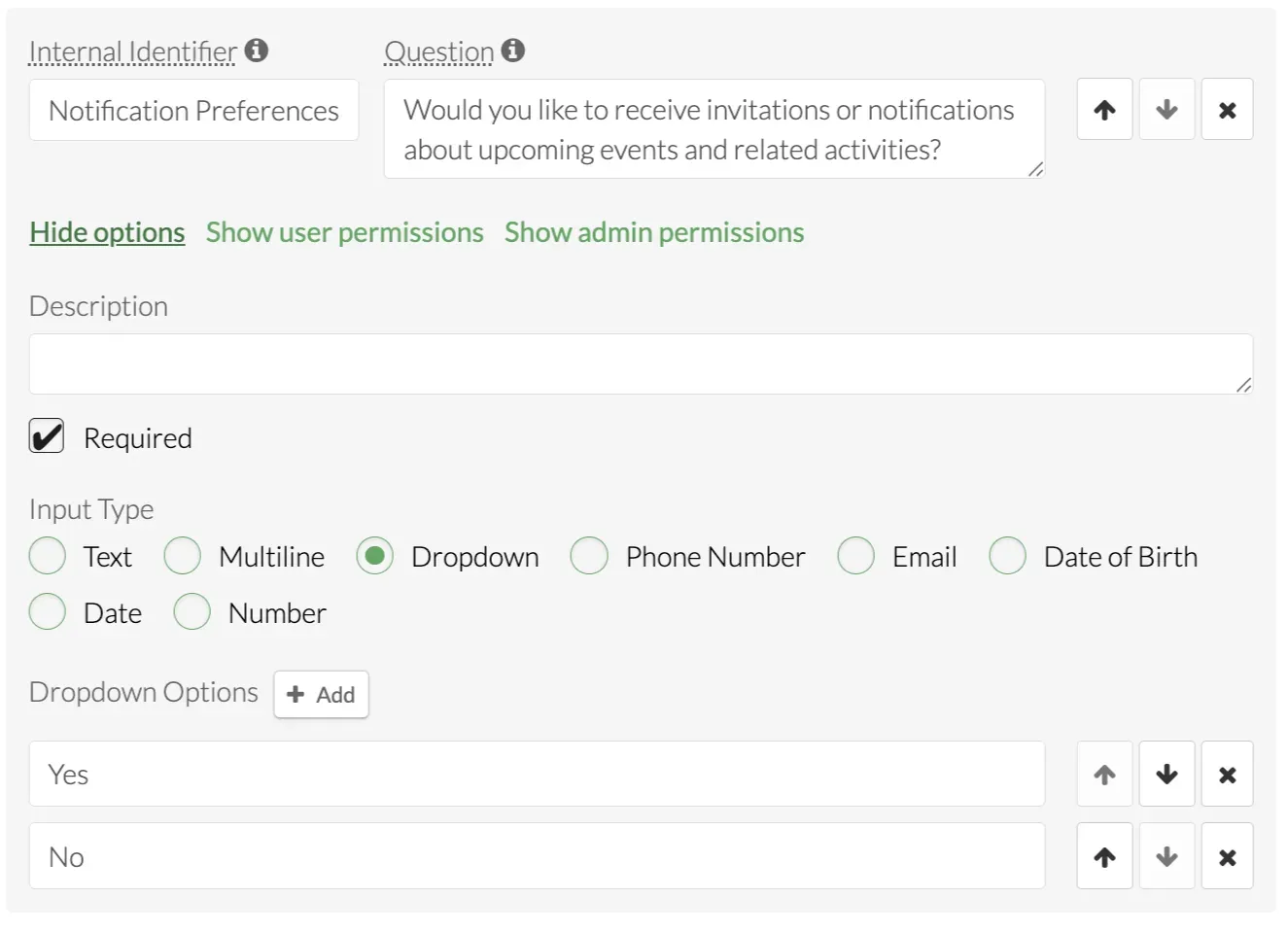
Add a new question using the following setup:
- Internal Identifier: Notification Preferences
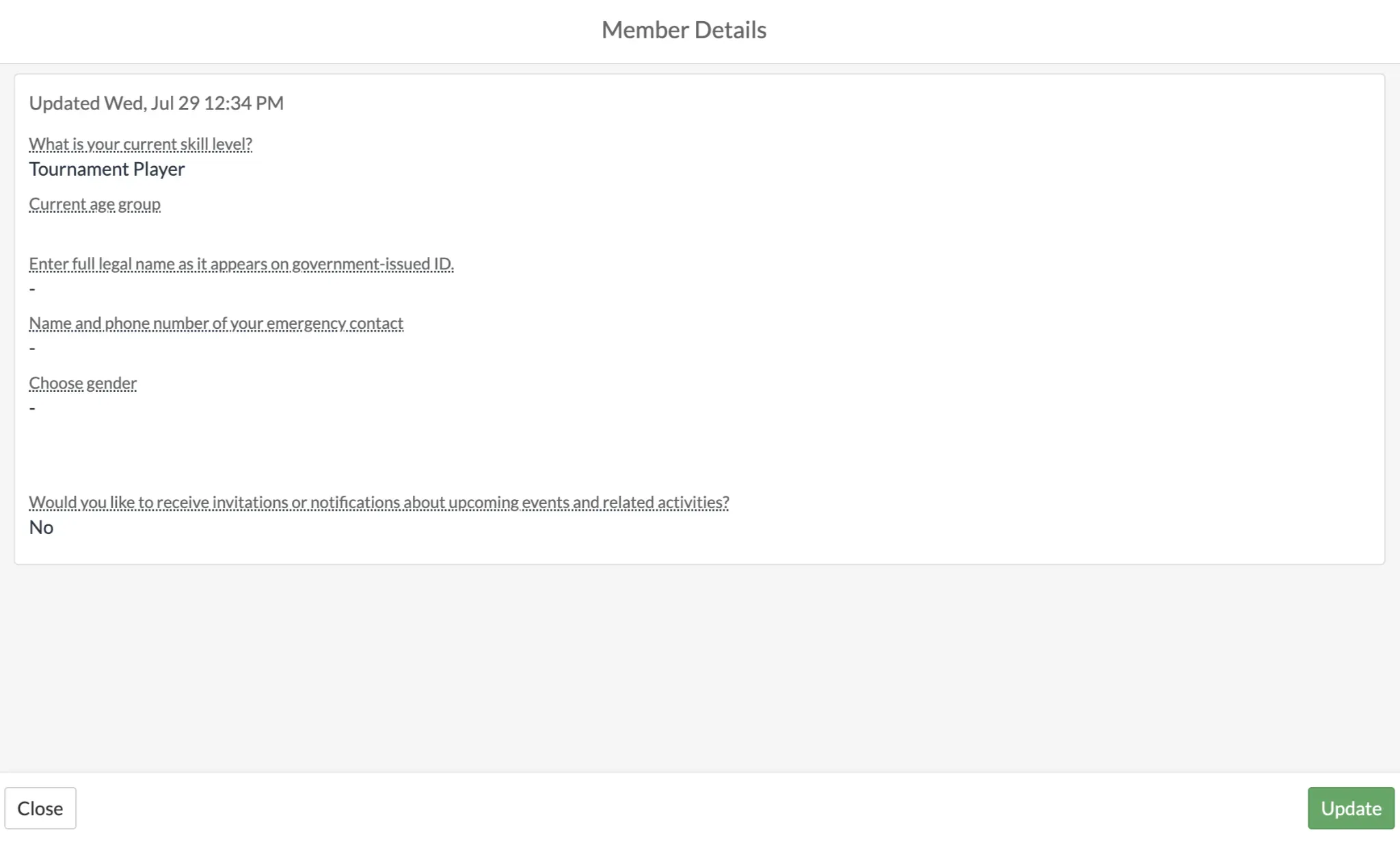
- Question: Would you like to receive invitations or notifications about upcoming events and related activities?
- Input Type: Dropdown
- Options: Yes and No
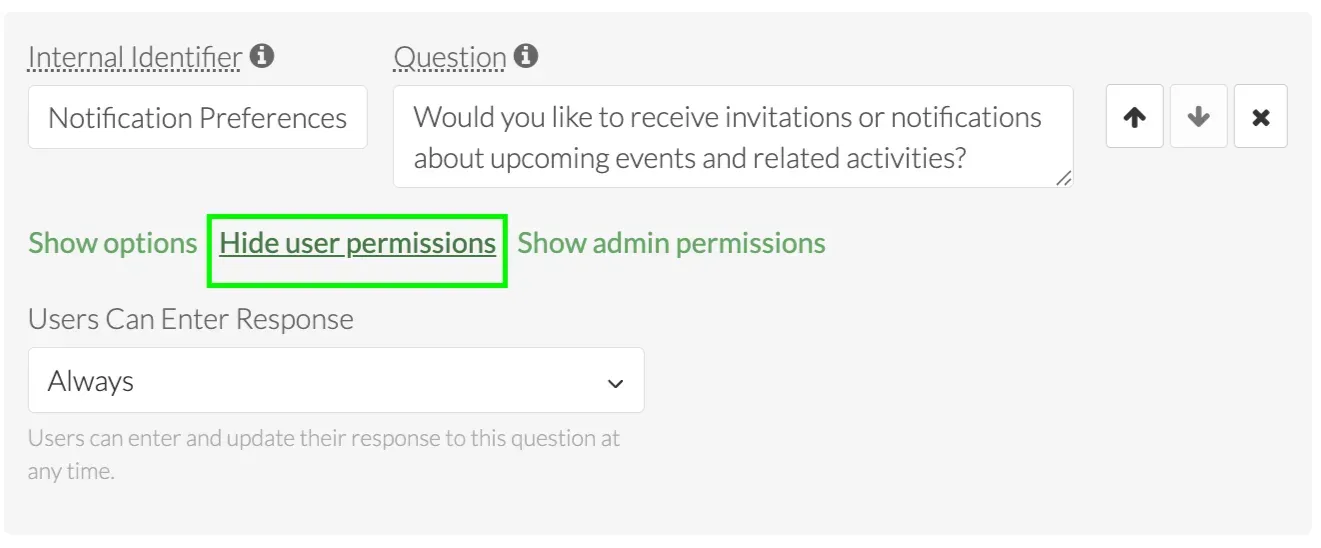
User Permissions
Set Users Can Enter Response to Always so players can update their response at any time from their member details.
Admin Permissions
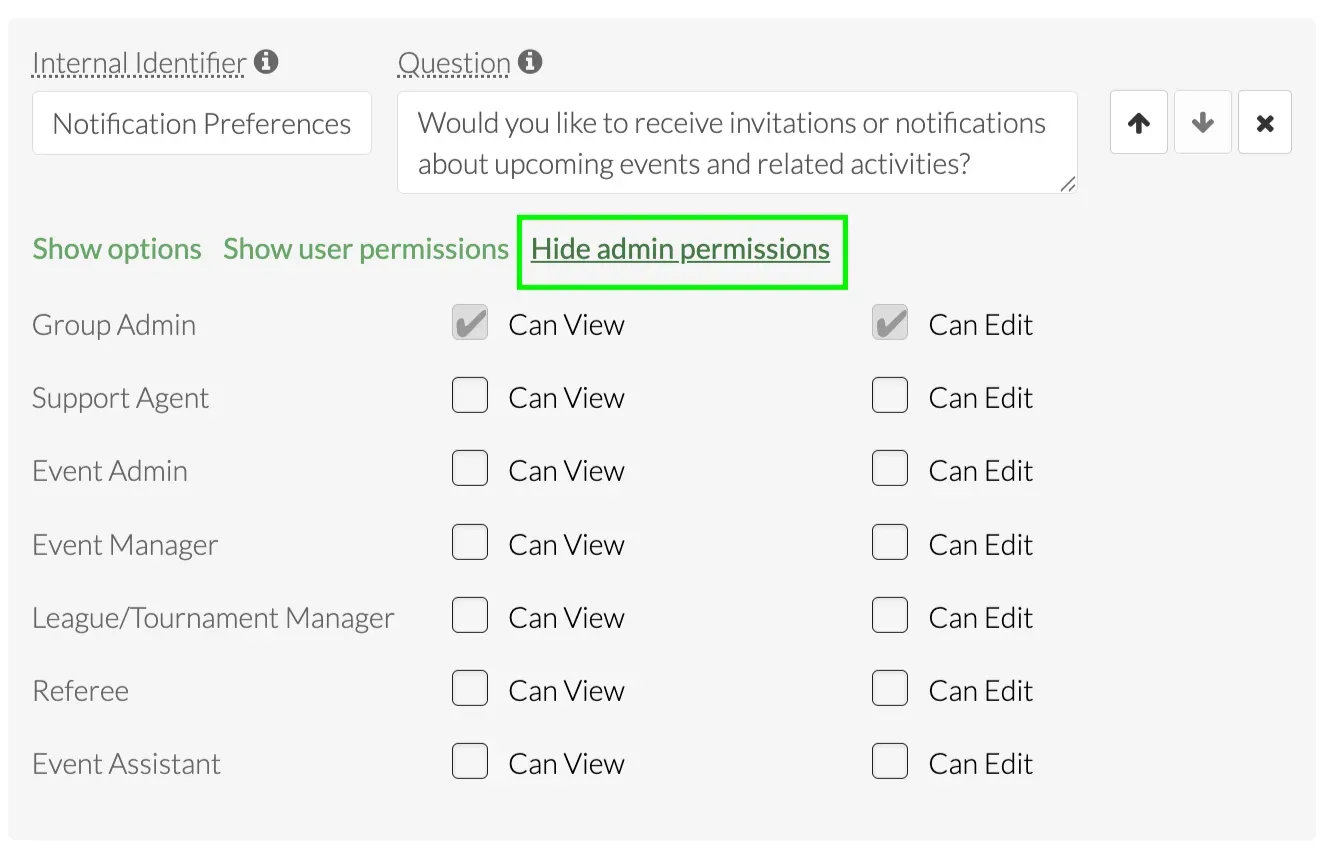
Under Admin Permissions, select which admin roles can view or edit this information. You may choose to limit access to Group Admins only.
Once complete, select Update Form.
Note: When you add a new required question to the Member Form, existing members will be prompted to answer it the next time they register for an event or league. New members will be prompted when they join your group.
Step 2: Create a Member Rule
Next, create a Member Rule for players who selected Yes.
- From your Group Dashboard, go to Settings > Member Rules.
- Select Create Member Rule.
- Enter a title, such as Notifications Turned On.
You can leave the error message blank because this rule will only be used internally.
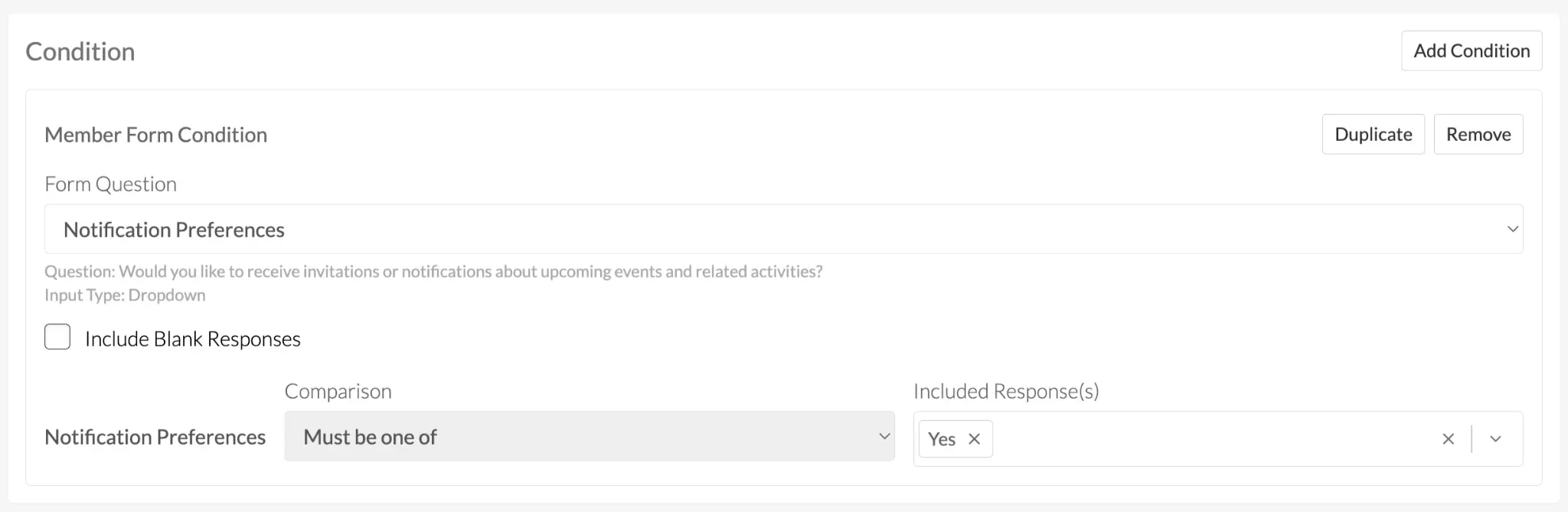
Under Conditions:
- Select Add Condition.
- Choose Add Member Form Condition.
- Select the notification preference question.
- Set the comparison to Must be one of, then select Yes as the included response.
Step 3: Filter Your Member List
To view members who agreed to receive notifications:
- Go to the Members tab.
- Select Filter.
- Choose Add Existing Member Rule.
- Select the notification preference Member Rule you created.
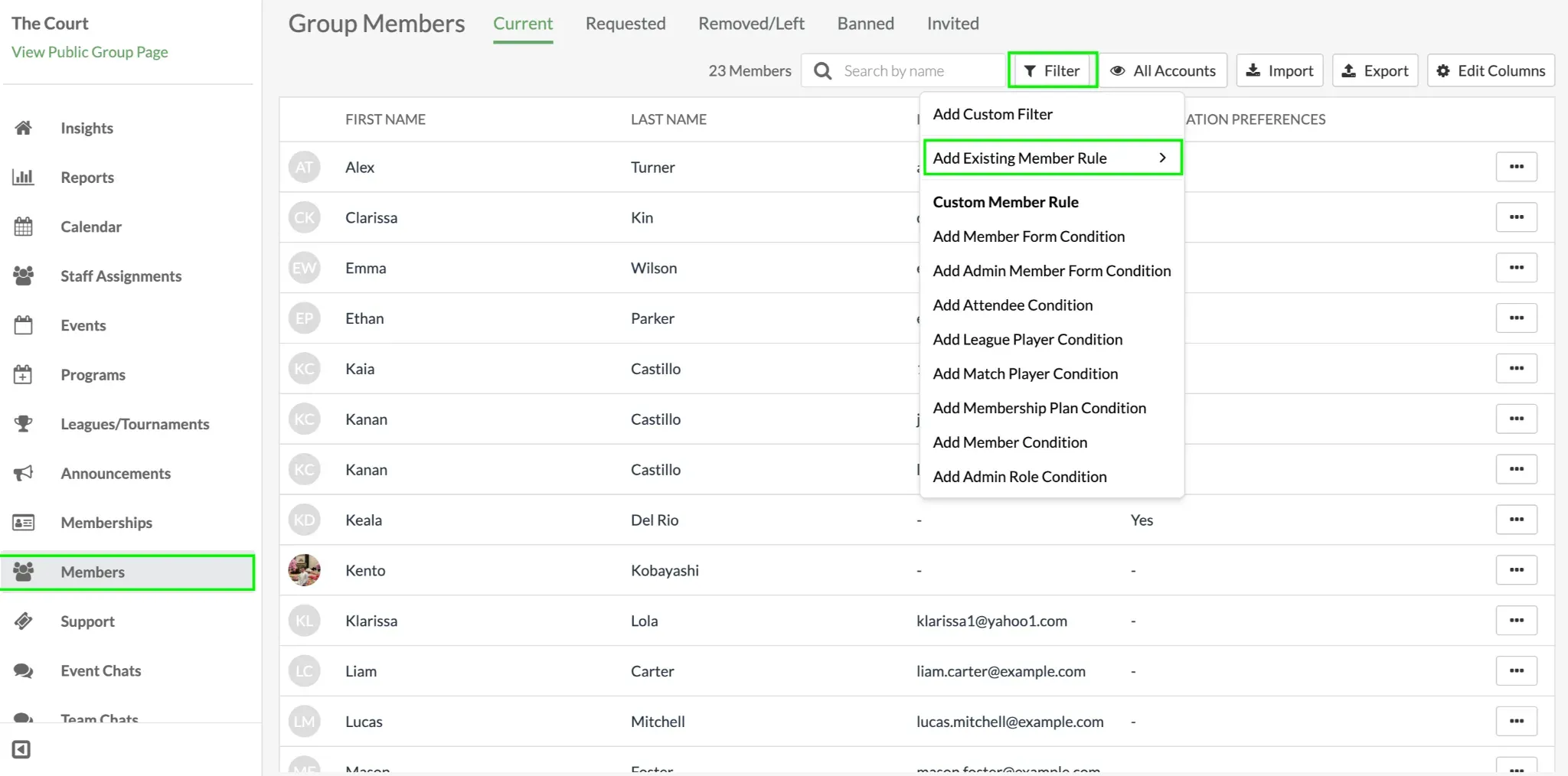
The filtered list will display members who selected Yes. You can then use the available contact information to email these members about upcoming events or other group activities.
Step 4: Invite Members to an Event
You can also use the Member Rule when sending event invitations.
- Open the event page.
- Select Invite.
- Choose Edit Columns.
- Add the Notification Preferences column.
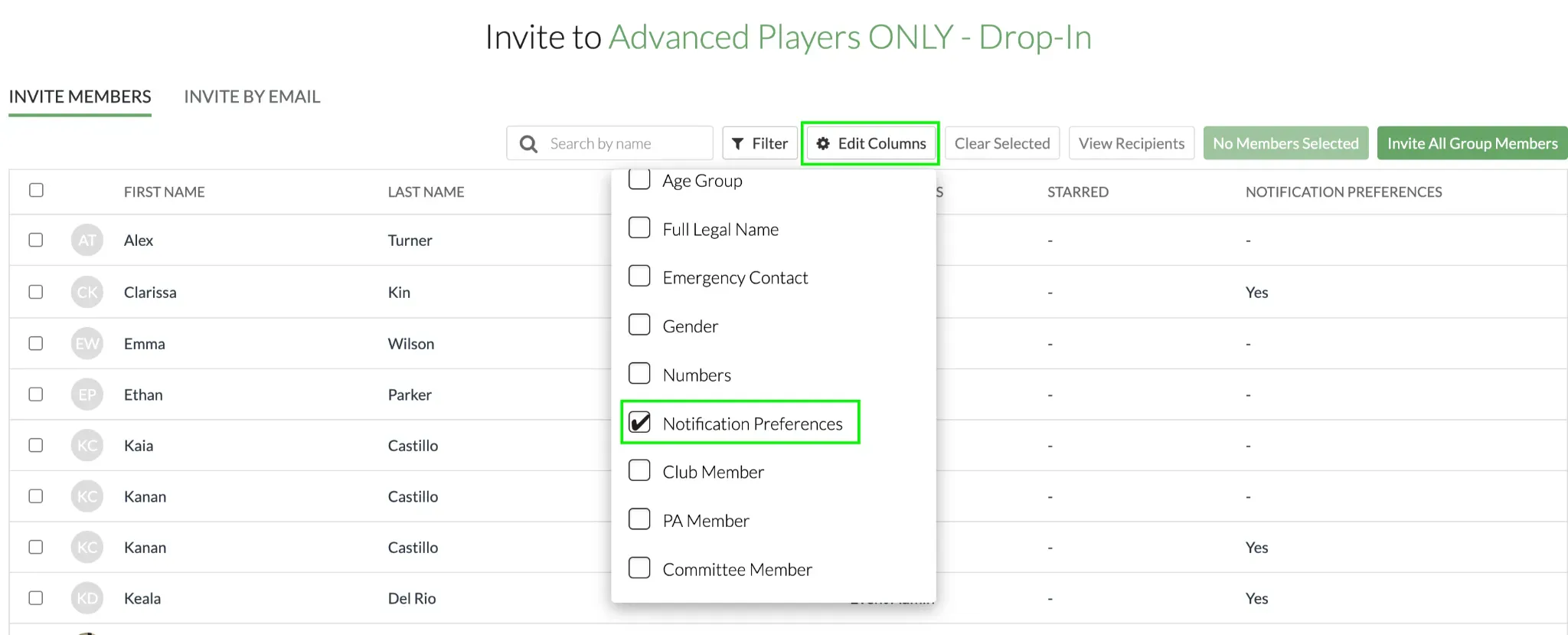
- Select Filter.
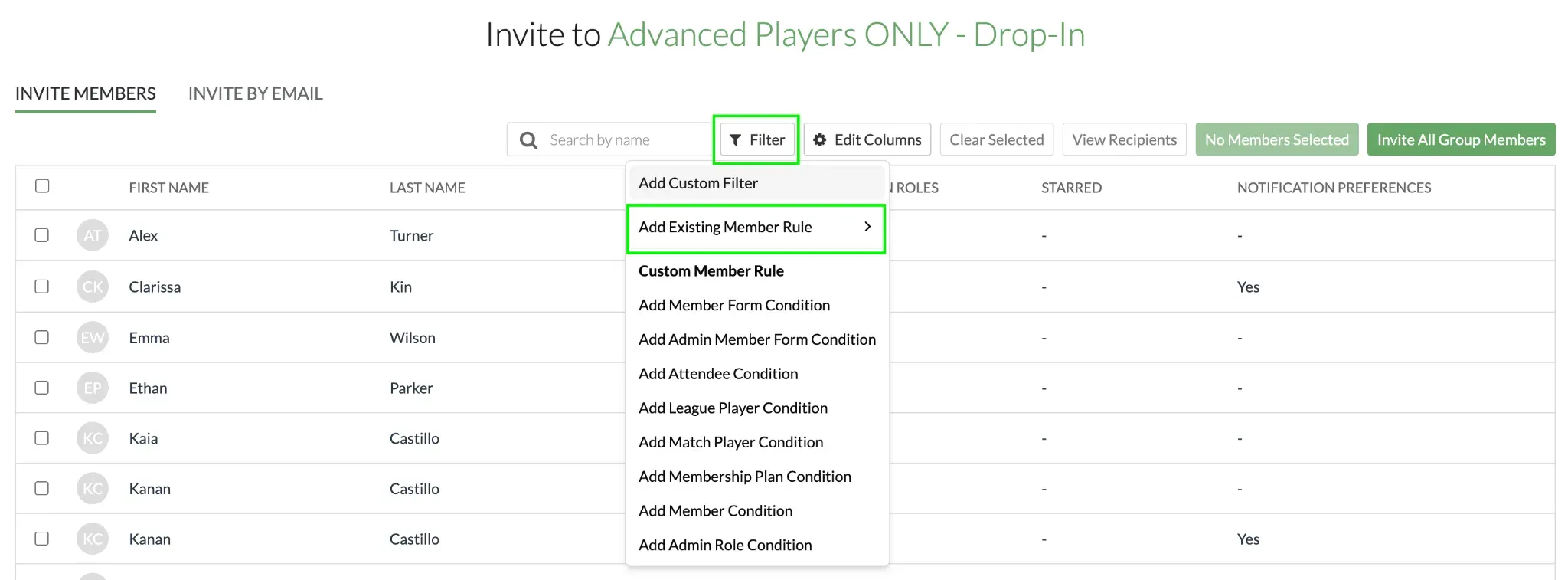
- Choose Add Existing Member Rule.
- Select the notification preference Member Rule you created.
The list will display players who agreed to receive invitations or notifications. Select the members you want to invite, then send the event invitation.
How Players Can Update Their Preference
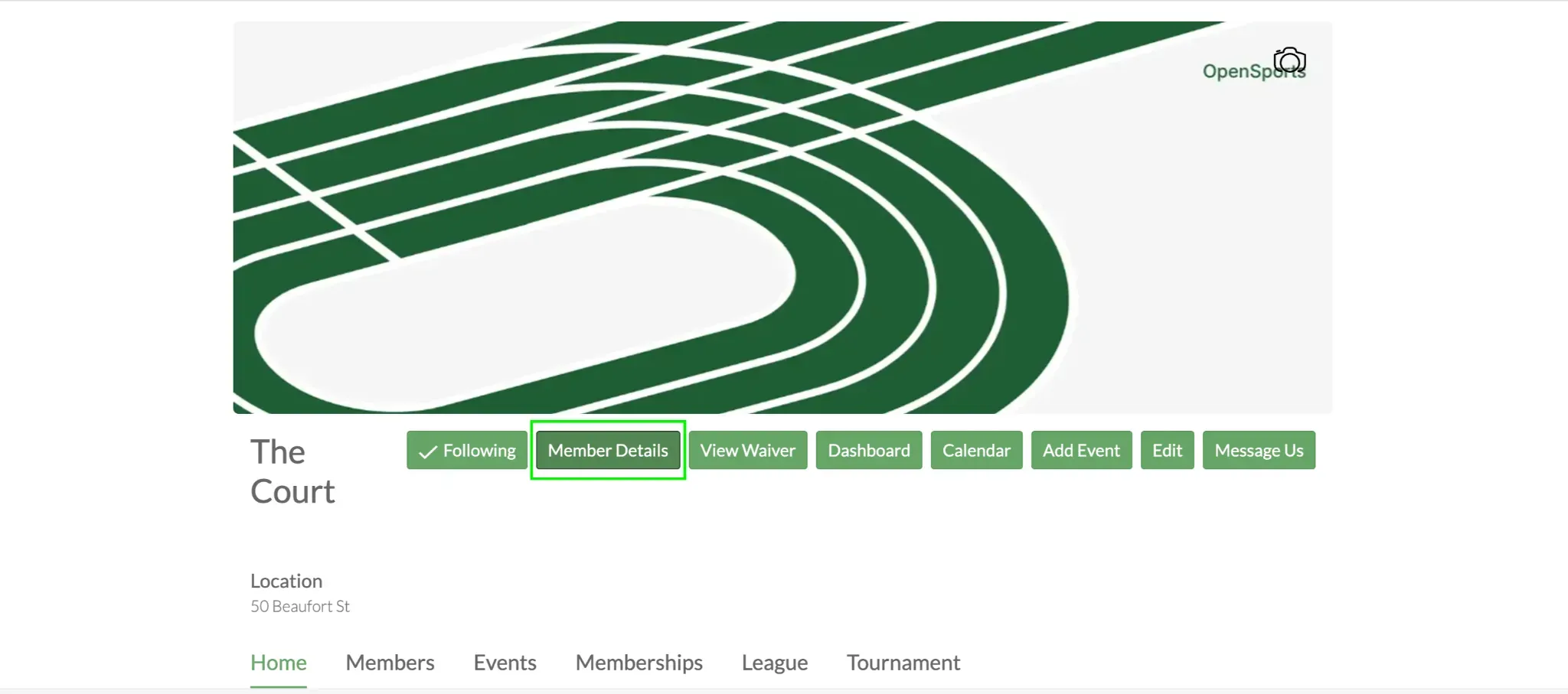
Players can locate the group profile, open their member details, and update their notification preference whenever the Member Form permission is set to Always.
Questions? Send them our way: support@opensports.net